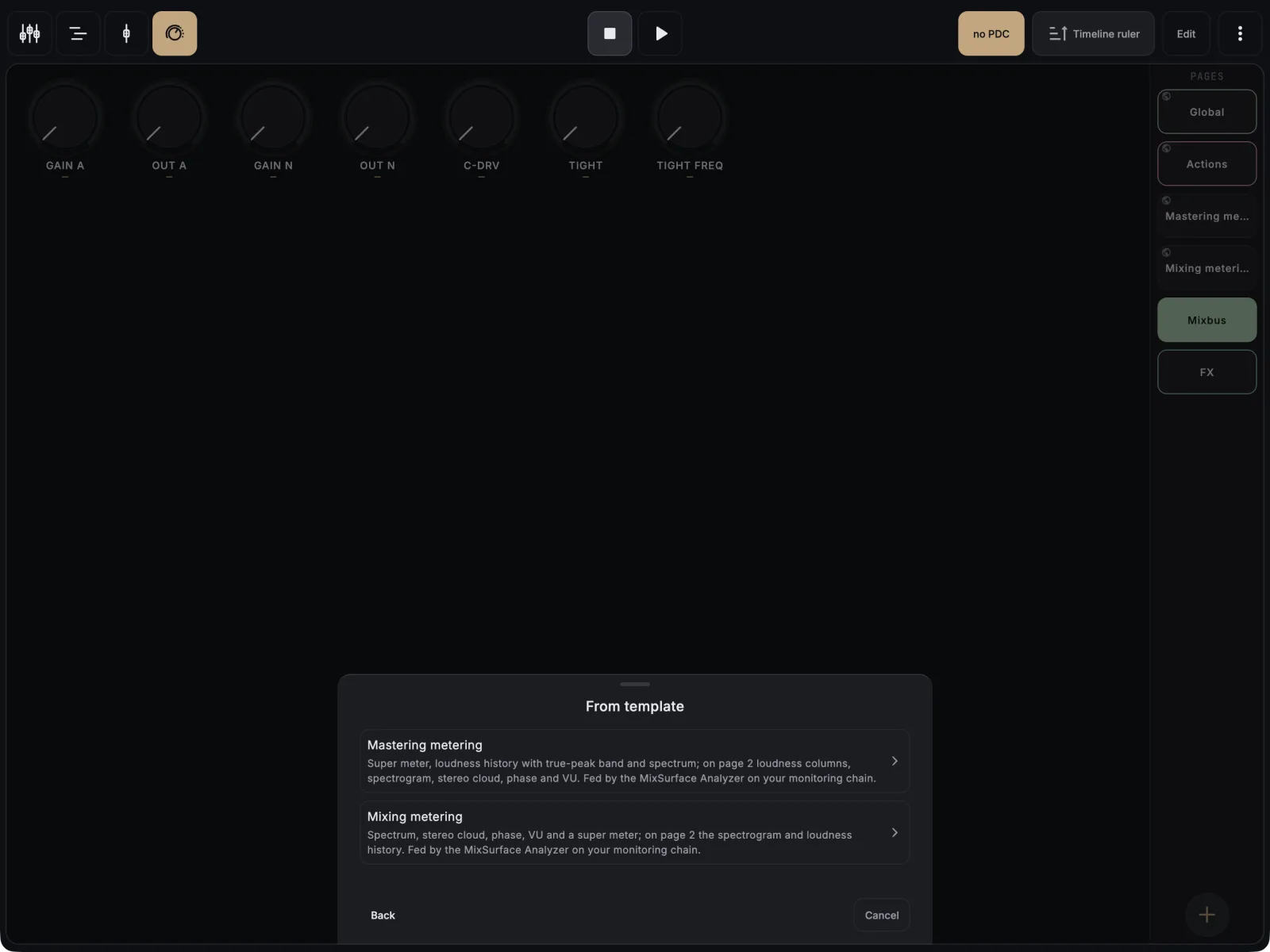
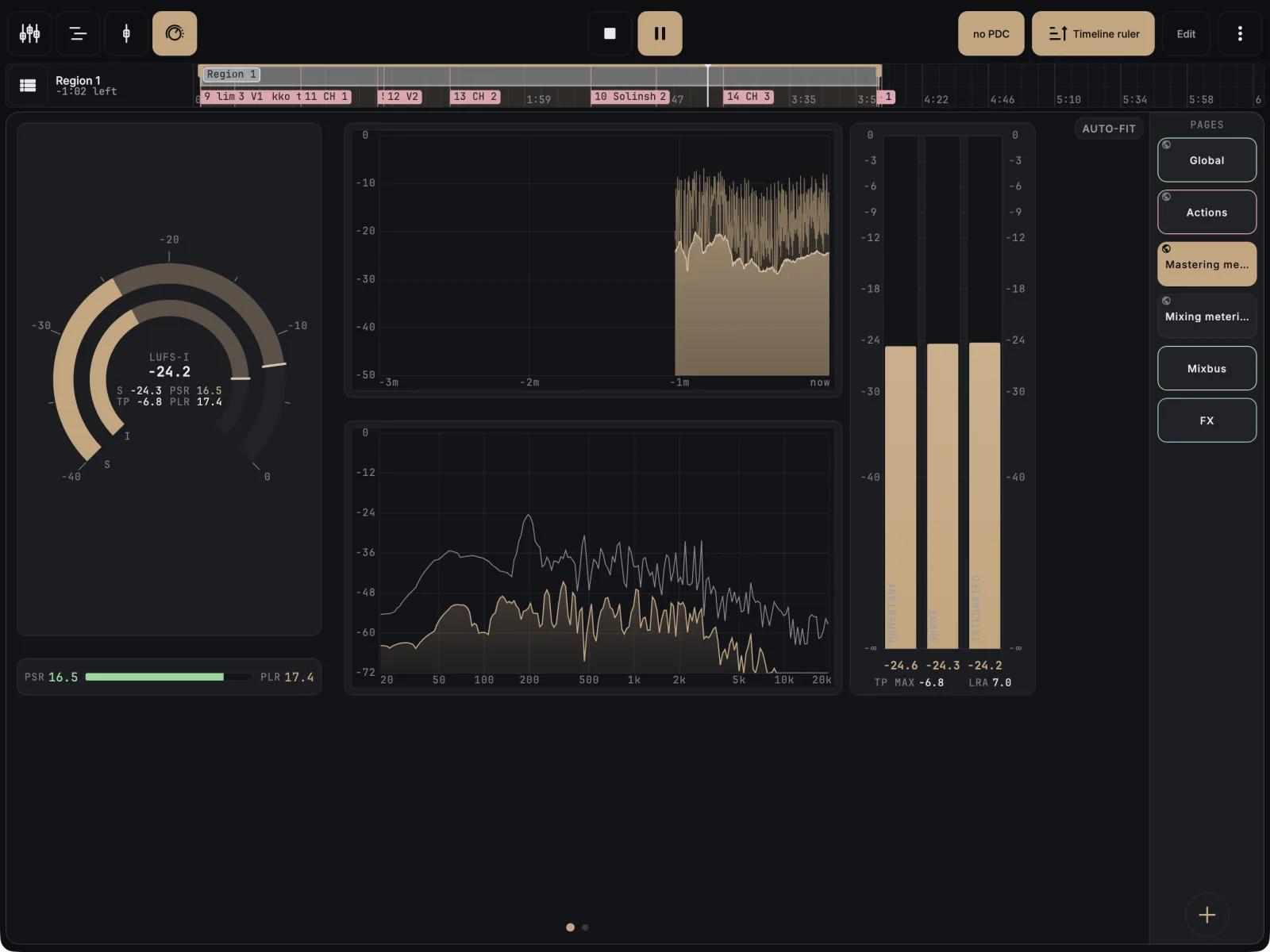
Control View has two ready-made metering pages. Add a page, choose From template, and pick Mastering metering or Mixing metering. Control View is part of the one-time unlock.
- Open Control View (the Ctrl tab).
- Tap + on the page rail. On an empty Control View, tap From template in the middle of the screen instead.
- In the New page sheet, choose From template.
- Pick Mastering metering (super meter, loudness history with a true-peak band, spectrum, loudness columns, spectrogram, stereo cloud, phase and VU) or Mixing metering (spectrum, stereo cloud, phase, VU, super meter, spectrogram and loudness history).
- Press play in REAPER. The meters move with what you hear.
The meters are fed by the MixSurface Analyzer. If it is not in REAPER’s monitoring FX chain yet, MixSurface puts it at the top of that chain when you add the page. The new page is a global page, so it is there in every project.
Use the meters
- Pinch or spread on the spectrum, the spectrogram or the loudness history to zoom. Double-tap to reset the view.
- On the loudness history, tap Live to jump back to now.
- Long-press the loudness meter, the super meter or the loudness history to reset its reading.
- On a smaller screen the same meters spread over more pages.
If it doesn’t work
- The meters don’t move. Open REAPER’s monitoring FX chain and check that MixSurface Analyzer is there and not bypassed.