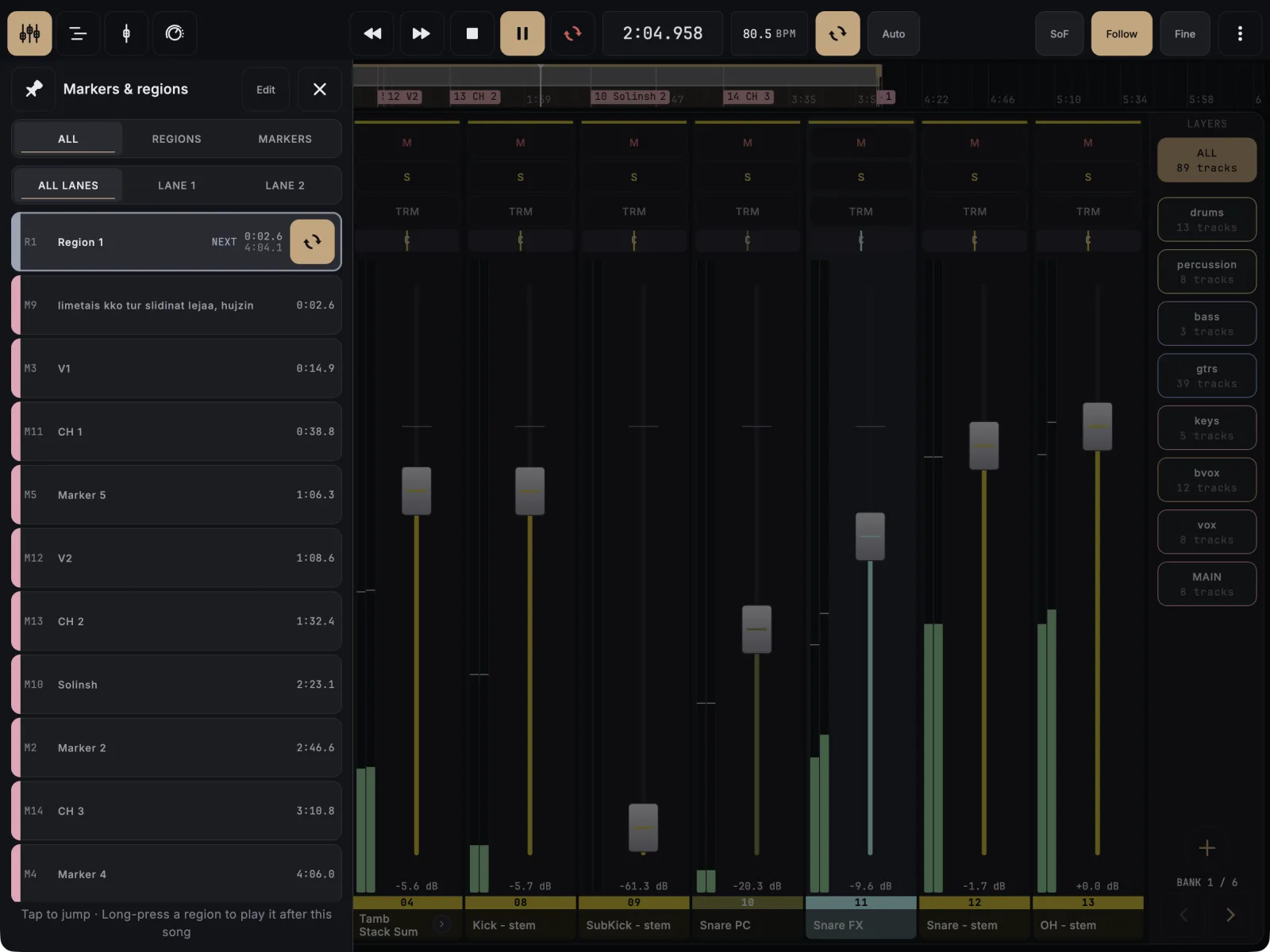
The timeline ruler shows REAPER’s markers and regions. Tap one to jump there. The region drawer lists them all, and a long-press on a region queues it to play after the current one, which is how you run a live set. Navigating is free; adding and editing markers needs the unlock.
- If the ruler is hidden, tap ⋮ (More) in the top bar and choose Show timeline ruler.
- Tap a marker tick or a coloured region band on the ruler to jump there. Tap an empty part of the ruler to move the play cursor.
- Tap with two fingers on the ruler to fit the whole song. Tap with two fingers again to go back to your zoom.
- Tap the list button on the ruler to open the Markers & regions drawer. Use All, Regions or Markers to filter it.
- Tap a row to jump there.
- While REAPER plays, long-press a region row. It is marked NEXT, and REAPER plays to the end of the current region, then carries on from the one you picked.
- On a wide screen in landscape, tap the pin in the drawer header to keep it open beside the view.
The Rewind and Forward buttons in the transport also jump to the previous or next marker. Hold one to scrub.
If it doesn’t work
- A jump waits before it happens. REAPER’s smooth seek is on, so a jump while playing waits for the end of the bar. It is REAPER’s own setting; the marker editor has a Smooth seek switch for it.
- There is no pin. The drawer can only be pinned in landscape on a screen wide enough to keep the view usable beside it.
- A marker is missing. Markers and regions hidden in REAPER’s Region/Marker Manager are hidden on the tablet too.
- Edit asks to unlock. Adding, renaming and moving markers is part of the unlock. With it, tap Edit in the drawer, then + Marker or + Region.