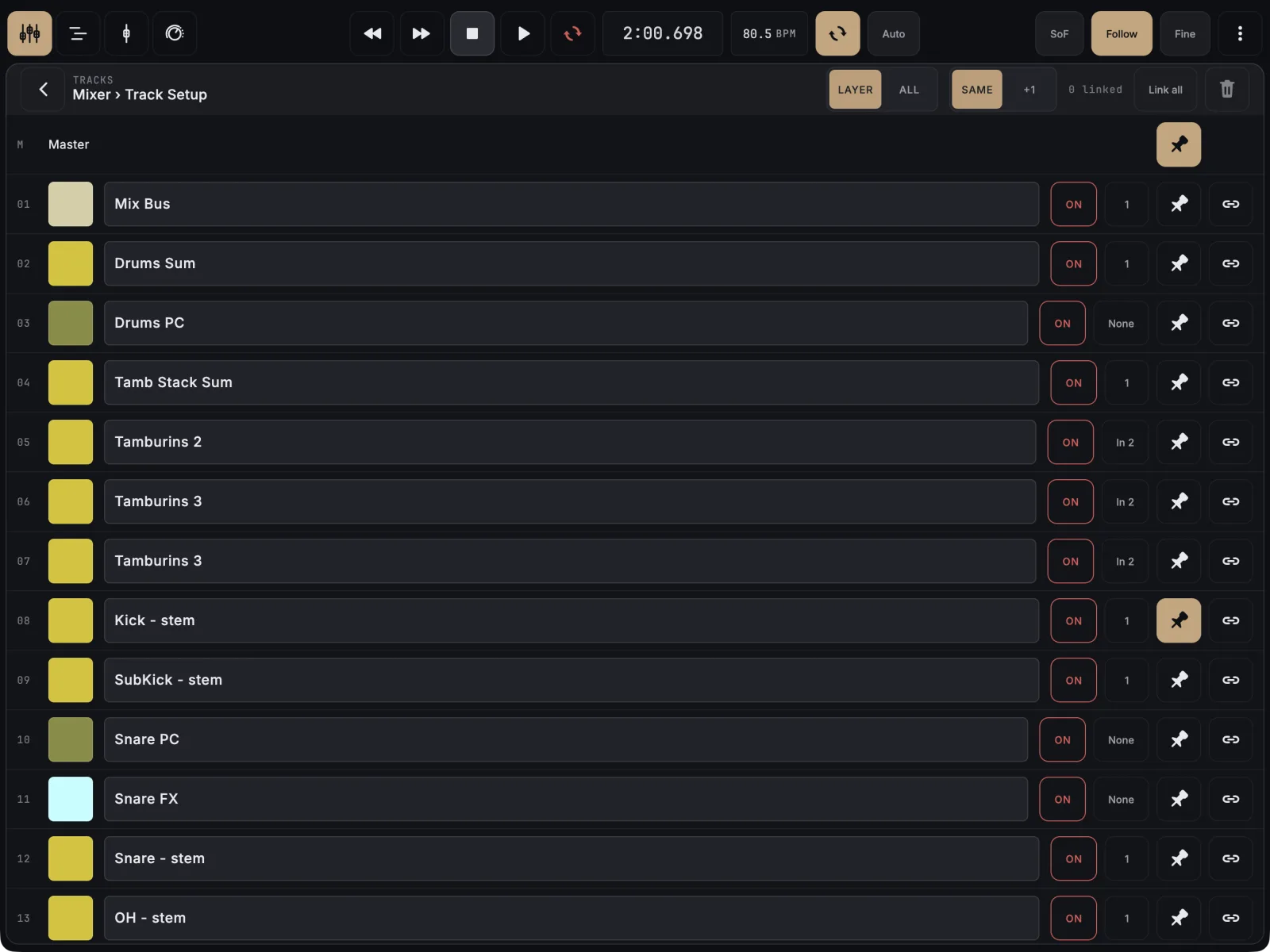
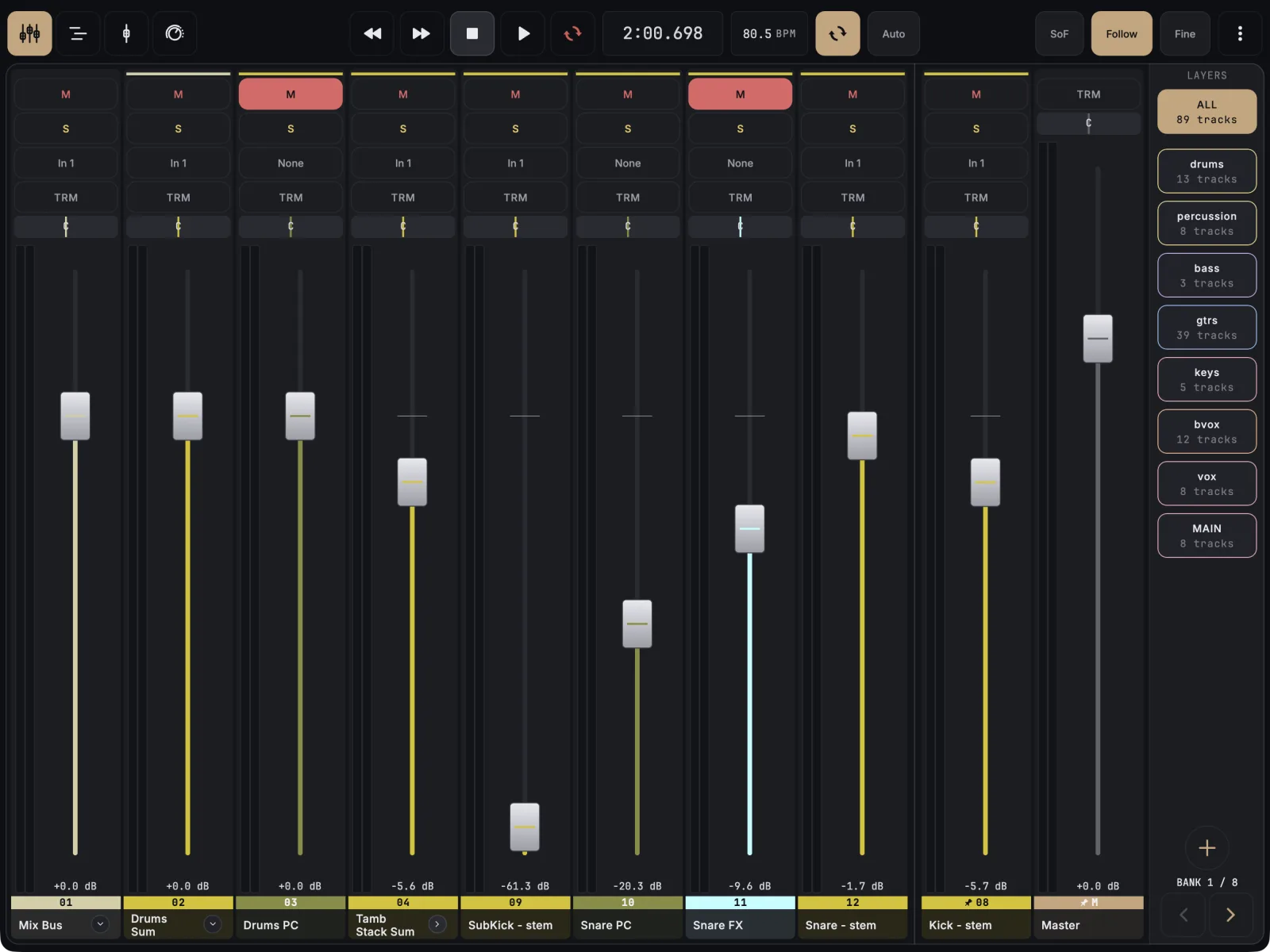
Open Track Setup and tap the pin next to the track. The track moves into a fixed zone at the edge of the mixer and stays there on every layer and every bank, while the other strips scroll. Pinning is free, and it works for master too.
- In the Mixer, long-press a track’s name. You can also tap ⋮ (More) in the top bar and choose Track setup.
- Find the track you want to keep in view and tap its pin.
- For master, tap the pin on the slim Master row at the top of the list.
- Go back to the Mixer. The pinned strips sit in their own zone at the edge.
- To unpin, open Track Setup again and tap the same pin.
You can also pin from a layer’s setup screen: on the layer rail, long-press to enter edit mode, tap one of your layers, and use the pin on a track’s card.
If it doesn’t work
- The zone is on the wrong side. It sits where REAPER’s mixer shows master. Change the REAPER mixer option that shows master on the right side, and the zone follows.
- Another tablet shows different pins. Pins are saved with the REAPER project, so every device on that project sees the same pins. Check that both are connected to the same project.
- Many pins on a small screen. The pinned zone scrolls on its own instead of squeezing the other strips.