You can set a track’s record input from the mixer strip or from Track Setup. Both open the same input picker, and both are free. Output routing (hardware outputs, the routing matrix) is not supported yet: set outputs in REAPER.
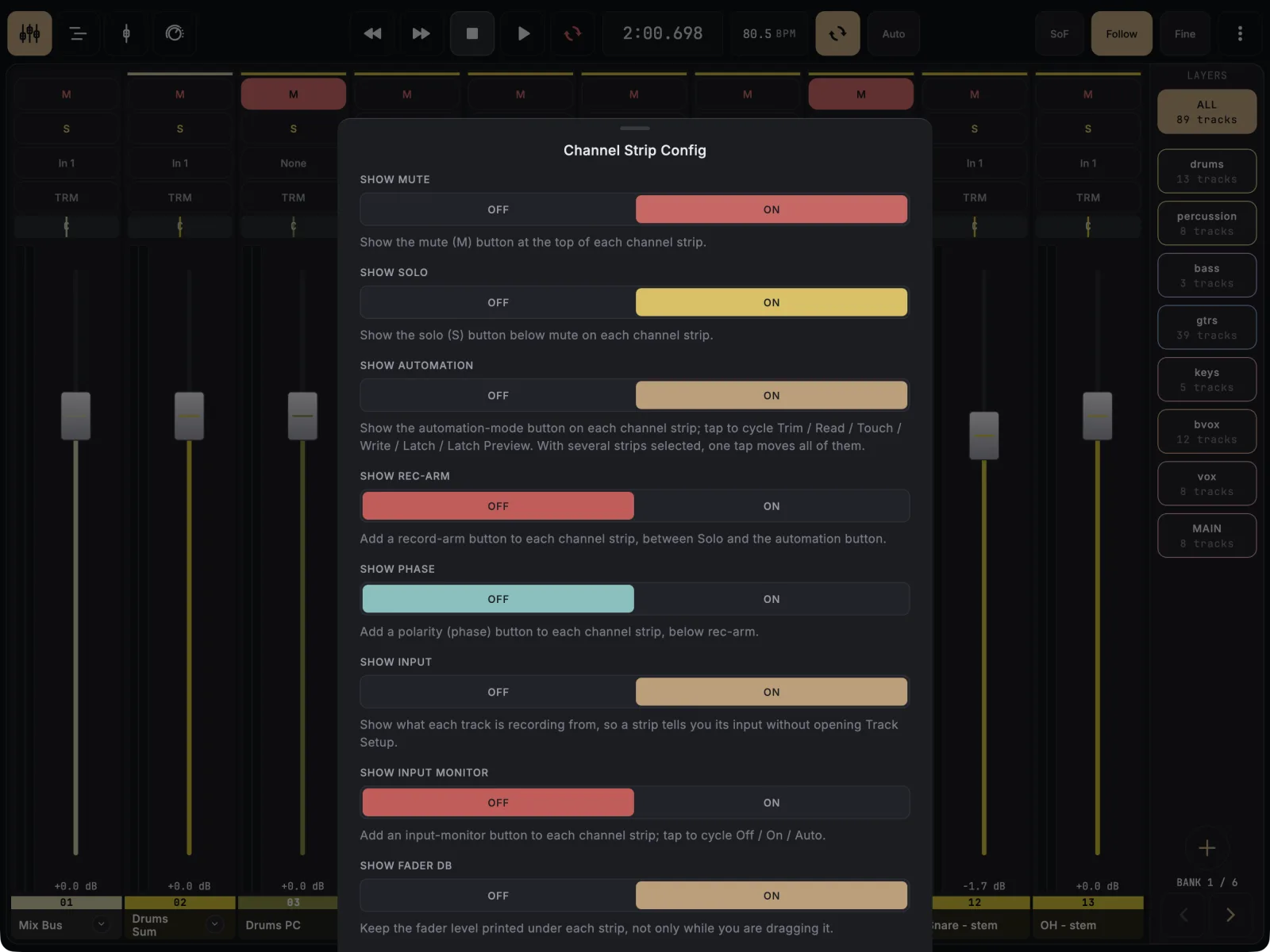
- In the Mixer, tap ⋮ (More) in the top bar and choose Mixer strip layout.
- Set Show Input to On. Every strip now shows its current input.
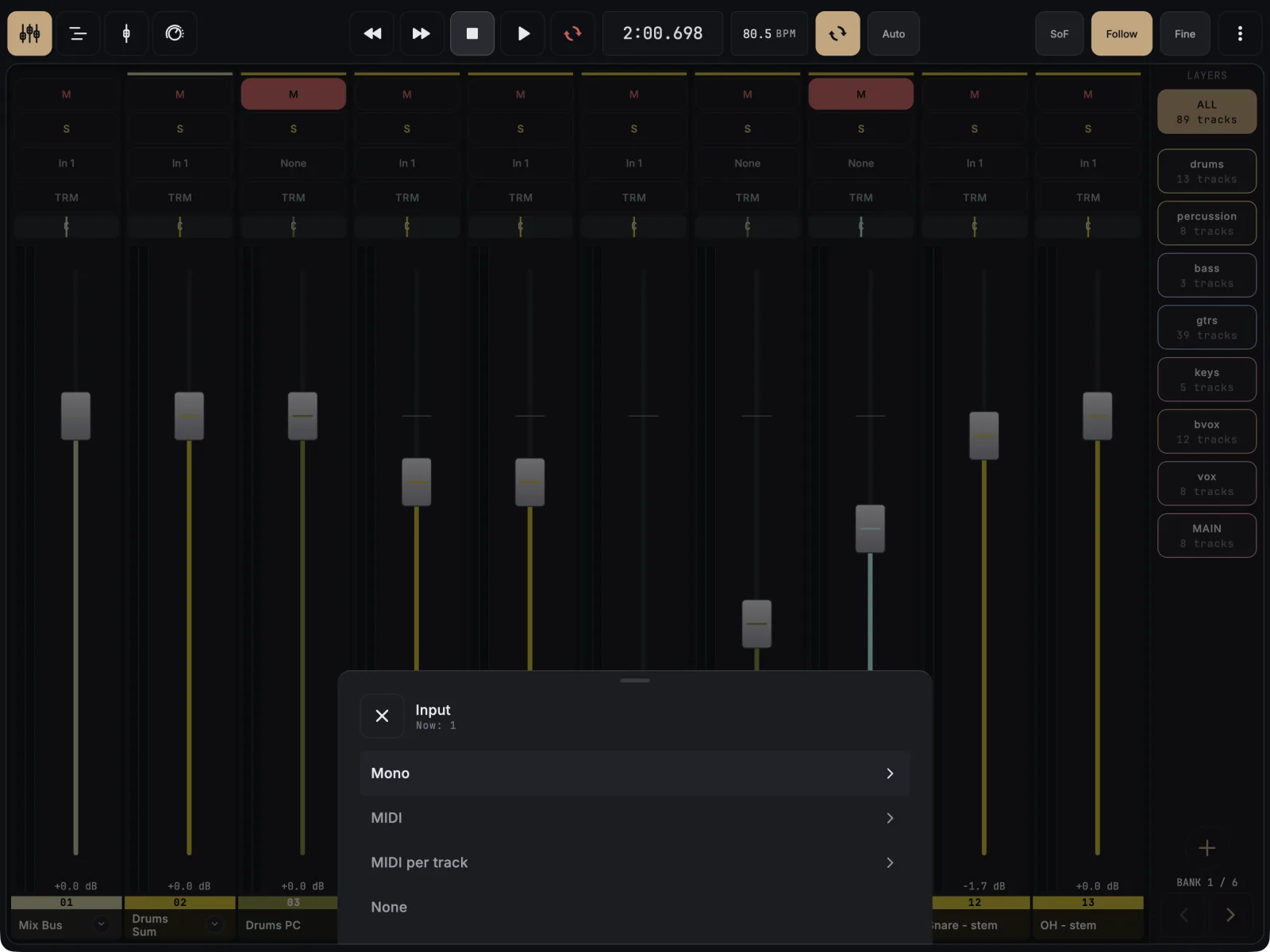
- Tap a strip’s input to open the Input sheet, then pick Mono, Stereo, MIDI or None and the input you want. Stereo only appears when REAPER sees two or more audio inputs.
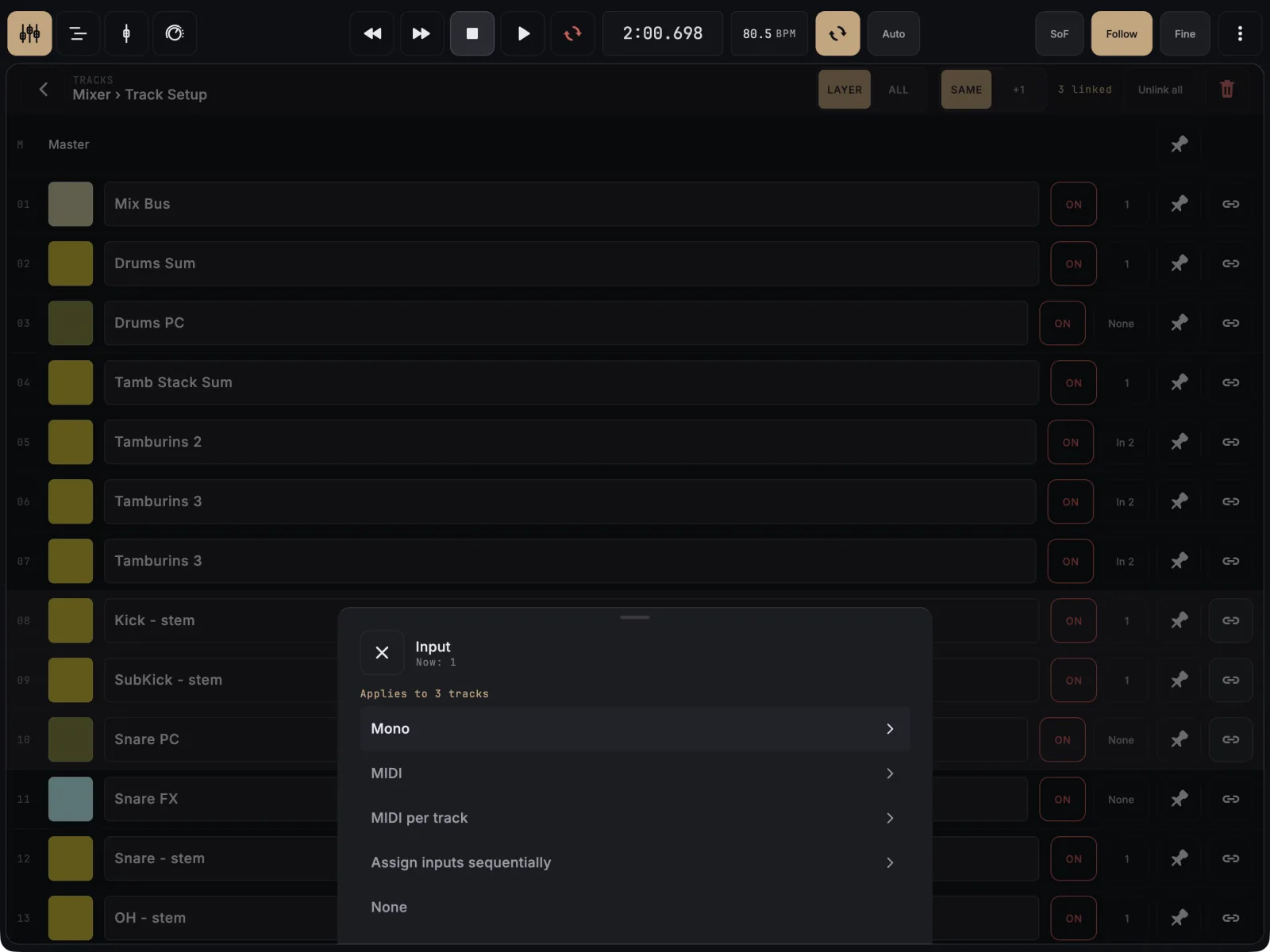
- To set up several tracks at once, long-press a track’s name, or tap ⋮ and choose Track setup. Each row has an input cell that opens the same sheet.
- To give tracks consecutive inputs, select them first (slide across their names in the mixer, or link the rows in Track Setup), tap one input cell and choose Assign inputs sequentially.
The sheet says Applies to N tracks at the top when more than one track will change, so you see the reach before you commit.
If it doesn’t work
- No input field on the strips. Show Input is off by default. Turn it on in Mixer strip layout.
- The list shows your old interface. The input list is read from REAPER each time you open the picker. Check that REAPER itself sees the new device under its audio settings.
- Assign inputs sequentially is missing. It only appears when more than one track will be filled.
- The master has no input. That is expected: master has no record input.