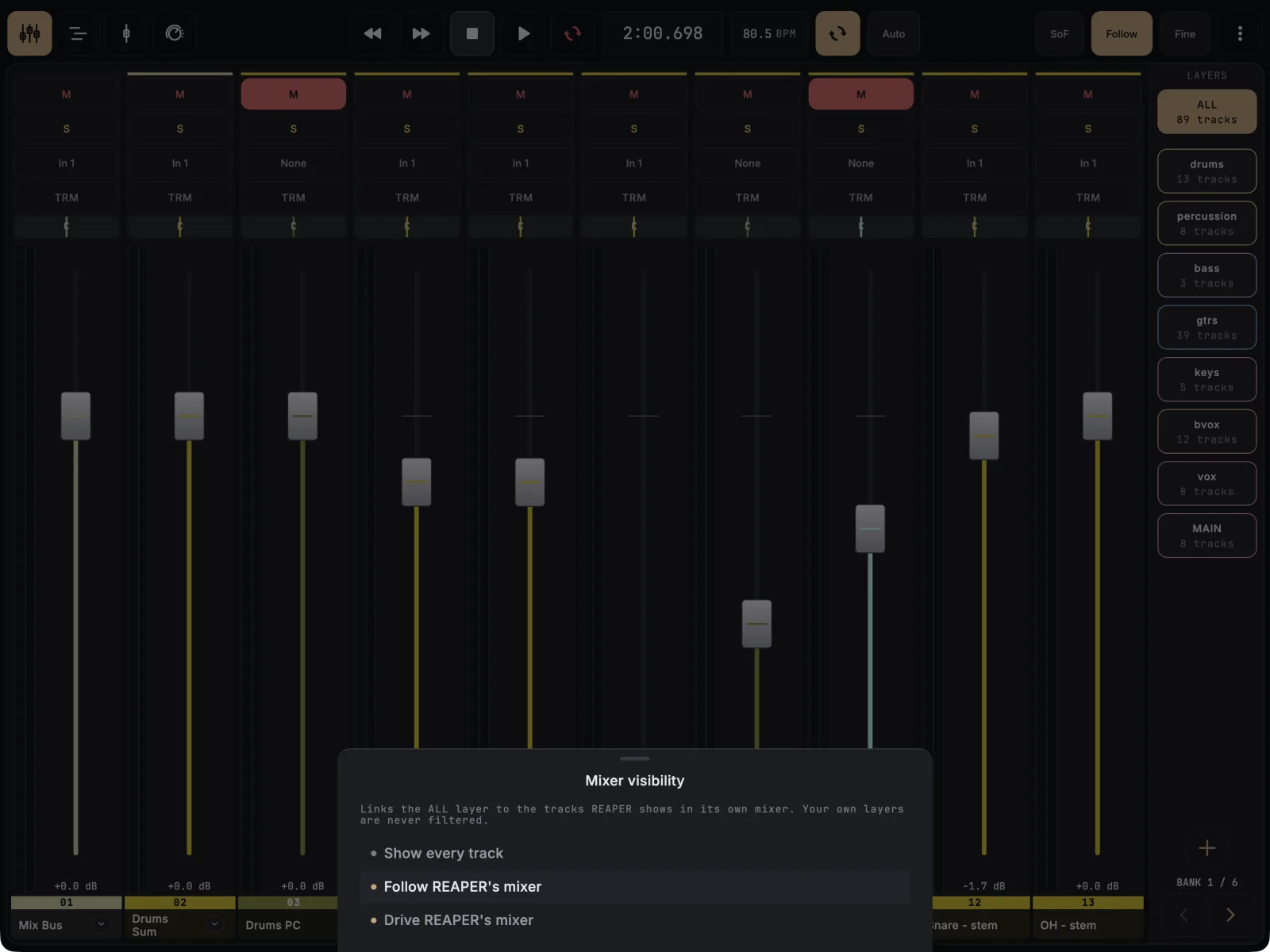
Tap Visible in the Mixer’s top bar and choose Follow REAPER’s mixer. The ALL layer now shows only the tracks REAPER’s mixer shows, so hiding tracks in REAPER (by hand or with a script) hides them on the tablet too. It is free.
- Open the Mixer and tap Visible in the top bar. On a narrow screen it may be in the ⋮ (More) menu, with the same label.
- Choose Follow REAPER’s mixer. The button now reads Visible: REAPER.
- Hide or show a track in REAPER’s mixer. The tablet follows within about half a second.
- To go the other way, choose Drive REAPER’s mixer (the button reads Visible: Surface). Tapping one of your layers then sets REAPER’s mixer to show only that layer’s tracks.
- To turn it off, choose Show every track.
While tracks are held back, the ALL chip in the layer rail shows a count such as 13/150 tracks.
If it doesn’t work
- My own layer still shows hidden tracks. Only the ALL layer is filtered. Your own layers always show exactly the tracks you put in them.
- Master is still there. Master always stays on the tablet.
- The mixer is empty. Every track is hidden in REAPER. The app says so; set Visible back to Show every track or pick one of your layers.
- Two tablets keep changing REAPER’s mixer. In Drive REAPER’s mixer, another device in the same mode will fight yours and the last tap wins. Use it on one device only.