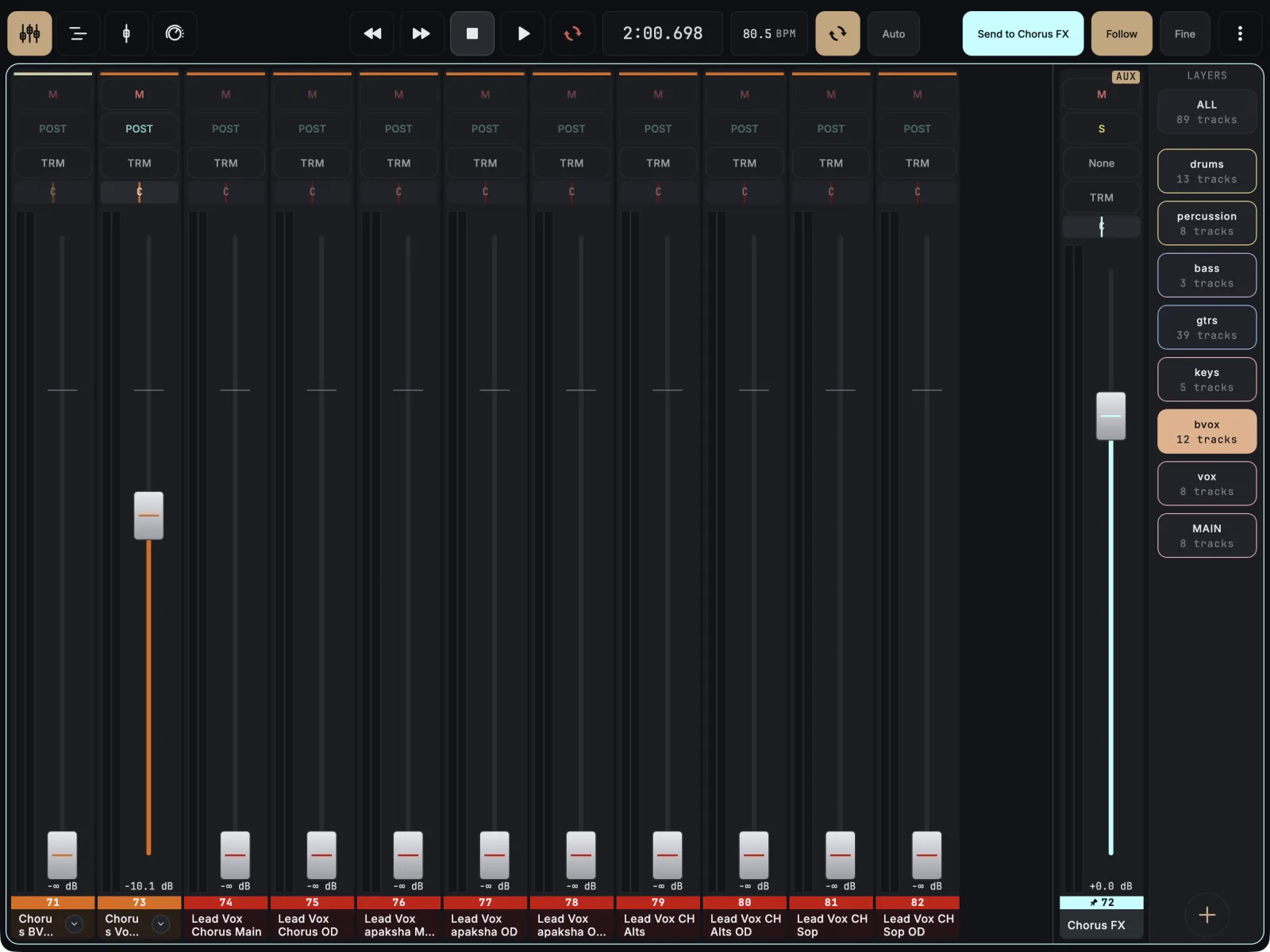
Give each musician a monitor bus in REAPER, then let them run MixSurface on their own phone or tablet in Sends on Fader mode. Their faders control the sends into their bus, not your main mix. All of this is free, so nobody needs the unlock.
- In REAPER, create one track per monitor mix and route it to that musician’s headphone or wedge output.
- Each musician installs MixSurface and connects to the same REAPER from the list on the connection screen. Every device connects on its own.
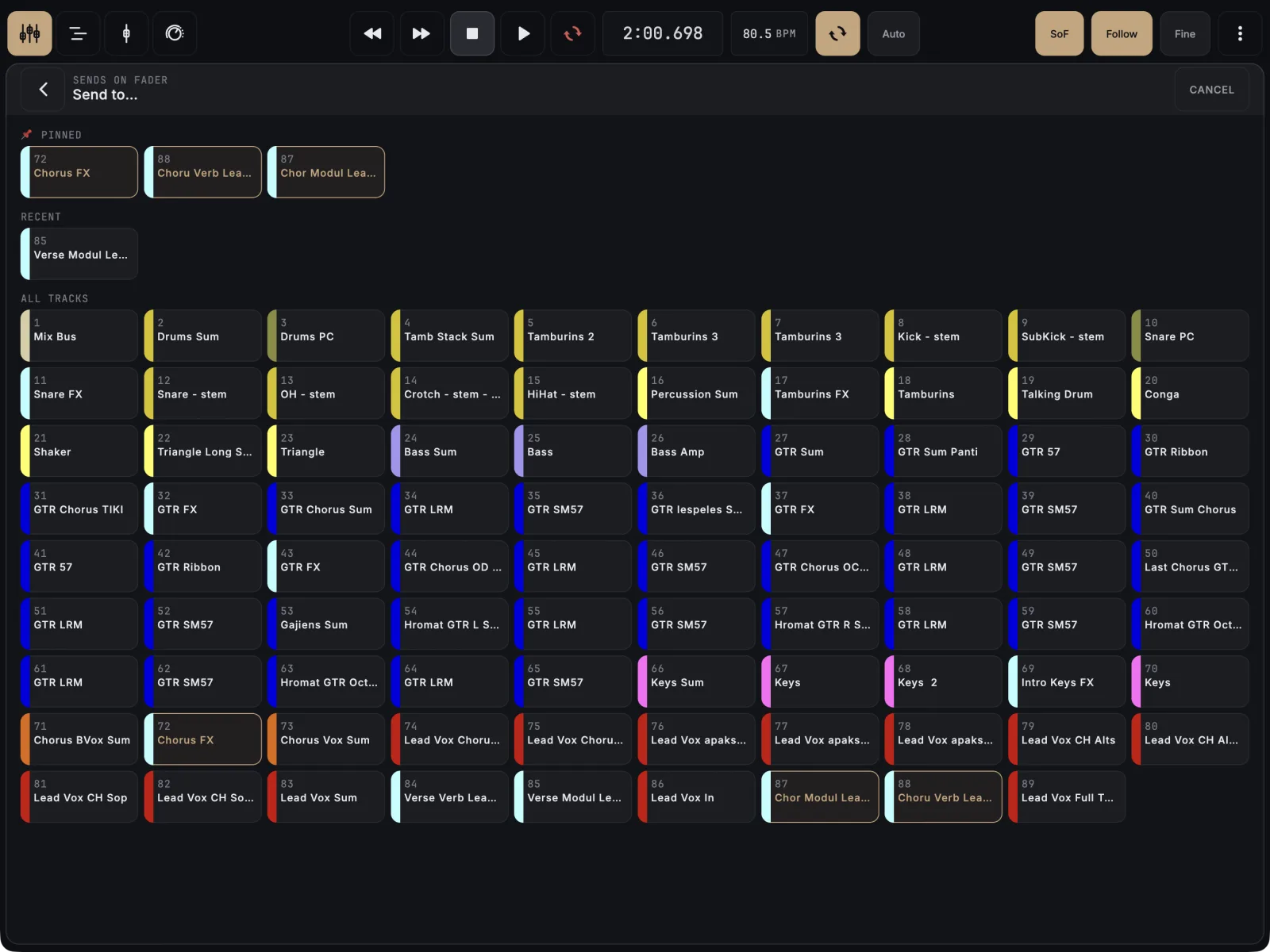
- On their device, they tap SoF in the top bar. The Send to… picker opens.
- They tap their own monitor bus. The button now reads Send to and the bus name, tinted in the bus colour.
- Each fader now sets how much of that track goes into their mix. The pan bar sets the send pan, and M mutes only the send, so the main mix is untouched.
- To leave send mode, they tap the button again.
In the picker, a long-press on a track pins it to the top under PINNED, so a monitor bus is always one tap away.
If it doesn’t work
- A strip looks faded. That track has no send to the bus yet. The first touch on its fader creates the send.
- Someone moved the main mix. They were not in send mode. Check that the top-bar button reads Send to and their bus name.
- Two people fight over one fader. Each musician should send to their own bus. Two devices on the same bus move the same sends.
- A device does not find REAPER. See the connection guides, or use Connect by IP on the connection screen.