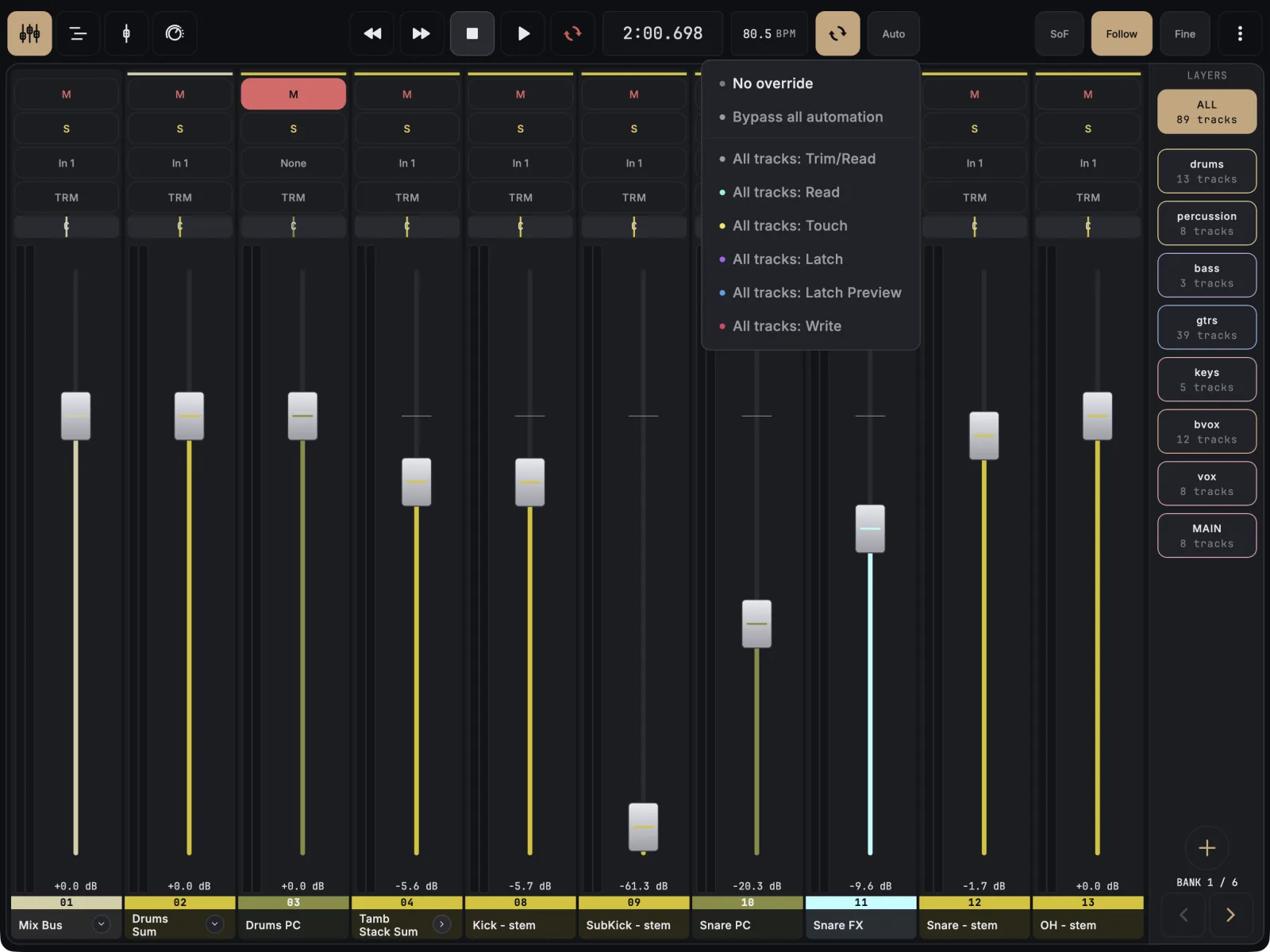
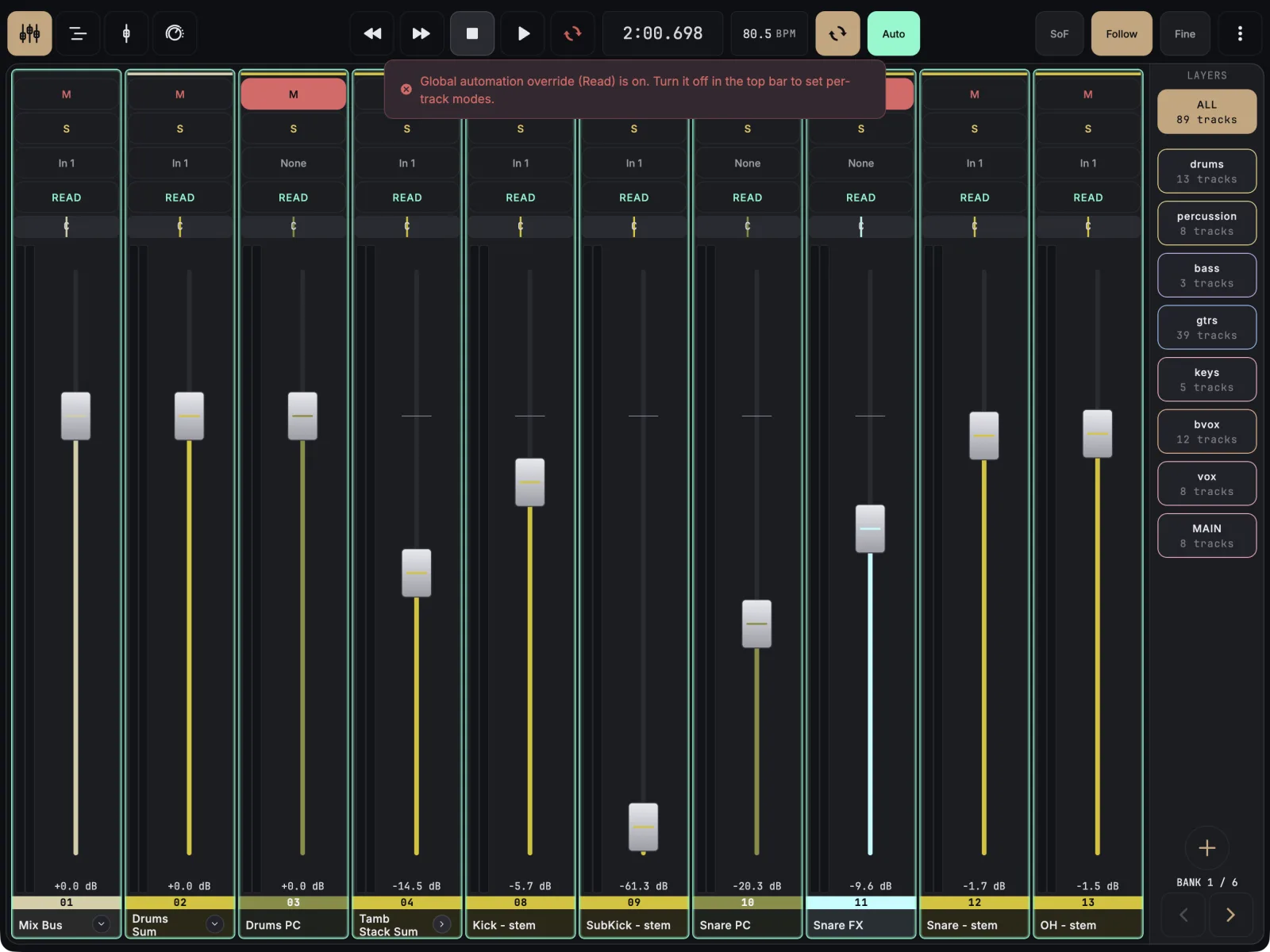
The fader shows what REAPER is using for that track. In Trim it shows the trim level and ignores the envelope. In Read, Touch, Latch, Latch Preview and Write it shows the automation. A global override in REAPER beats every track’s own mode, so check that first.
- Look at Auto in the top bar. If a global override is on, tap Auto and choose No override, or the mode you want for every track, such as All tracks: Touch.
- Tap the automation badge on a strip (TRM, READ, TCH, WRT, LAT or LATP) and pick the track’s mode from the list.
- For a Touch ride, press play, grab the fader, move it and let go. REAPER writes while you hold, and hands the fader back to the existing automation when you release.
- Make sure the REAPER extension is current. Install the latest from the setup page and restart REAPER.
Why this happens
- A global override is on. REAPER’s global automation override replaces every track’s mode. While it is on, tapping a strip’s badge shows a message telling you to turn the override off in the top bar first.
- The track is in Trim. Trim never follows the envelope, so the fader stays where you left it and does not snap back. Pick TCH or READ instead.
- Bypass all automation is on. With the global override set to bypass, faders show the trim level, the same as Trim.
- An older extension. Early extensions ignored the global override and read the trim value under automation. Current versions follow the effective mode, and also follow envelopes inside automation items.