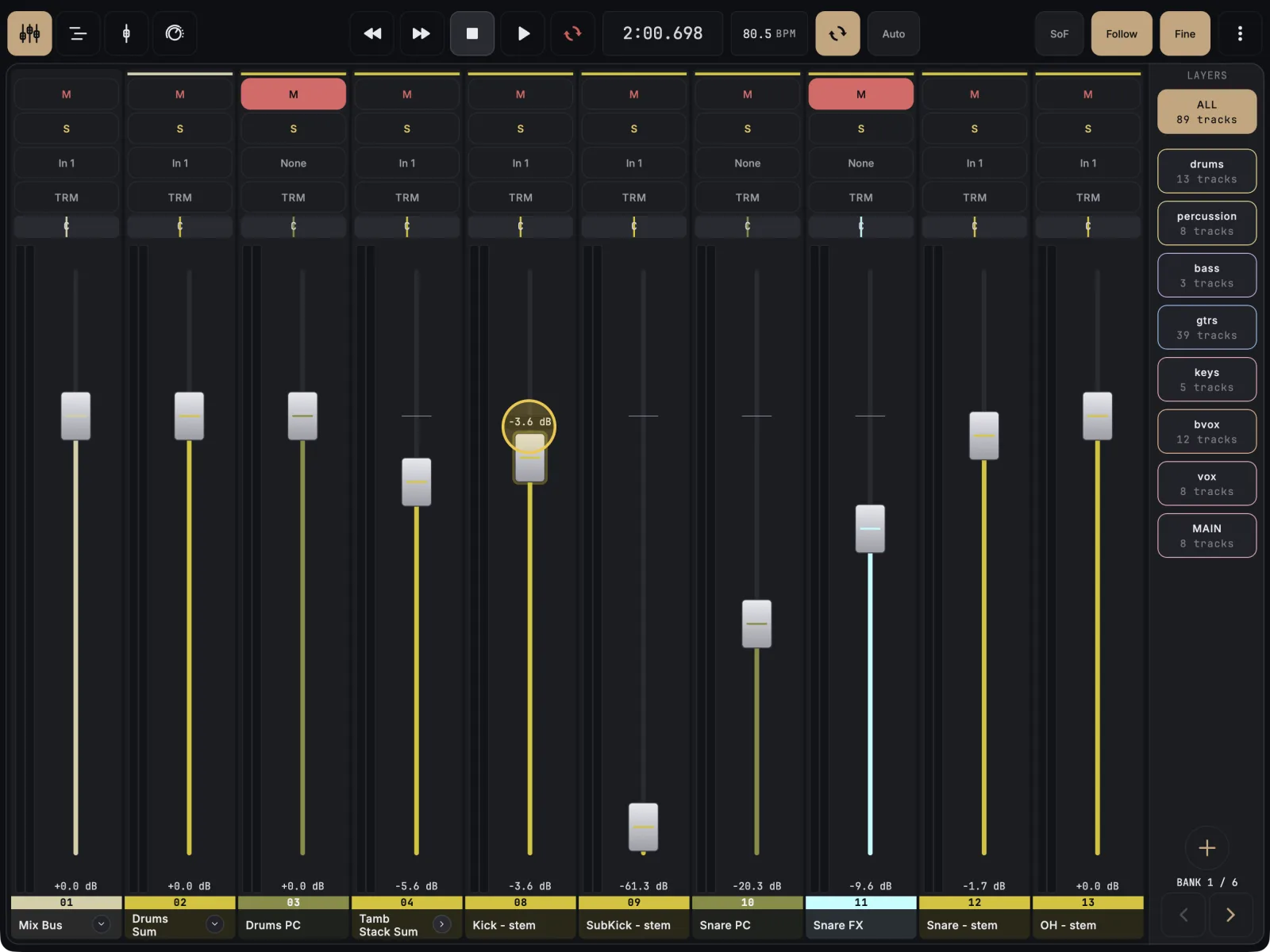
Put your finger anywhere on the fader and drag. The fader moves from where it is, so it never jumps to your finger. Slow moves give finer steps, fast moves follow your finger, and Fine halves the travel when you need more precision. All of this is free.
- Touch the fader anywhere along its lane and drag up or down. The level starts changing on the first bit of movement, and a dB readout shows while you drag.
- For small moves, push slowly. A slow push moves the level less than your finger travels. A fast throw follows your finger one to one.
- For a delicate ride, tap Fine in the top bar. Every drag now moves half as far. Tap Fine again to turn it off. On a narrow screen it is under ⋮ (More) as Fine control.
- To get back to unity, double-tap the fader. It glides to 0 dB.
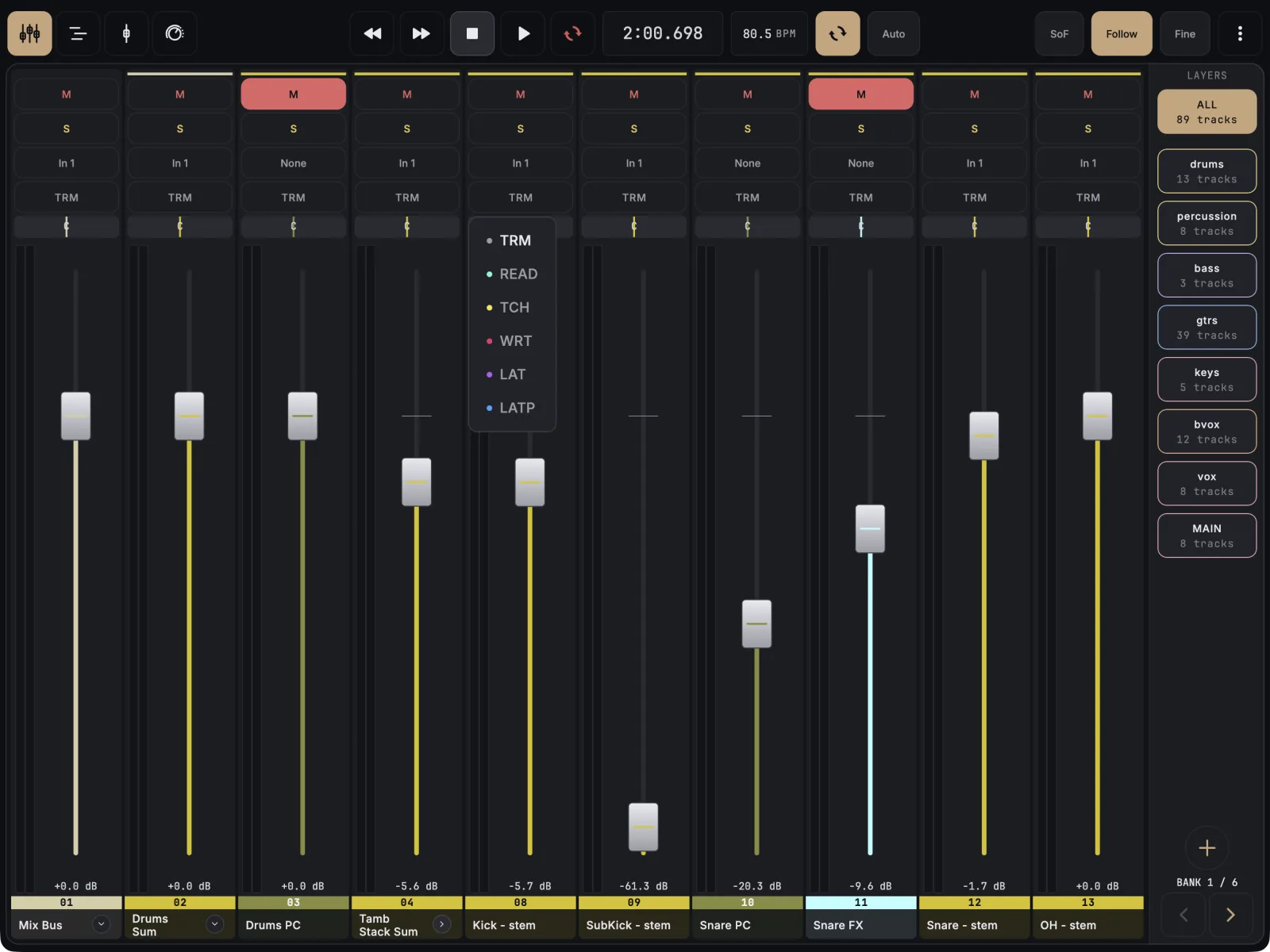
- To record the ride as automation, tap the track’s automation badge (it reads TRM in Trim) and choose TCH (Touch) or LAT (Latch). Press play and ride. REAPER writes the move.
- In Touch, lift your finger and REAPER hands the fader back to the existing automation.
Fine works on every draggable control in the app, not only faders, and it turns itself off when you relaunch the app.
If it doesn’t work
- No automation badge on the strips. Tap ⋮ (More), choose Mixer strip layout and set Show Automation to On.
- The automation mode can’t be changed. A global automation override is on. Tap Auto in the top bar and choose No override.
- The fader stops at +12 dB. That is the top of its travel. MixSurface warns you when a track is already louder than that.
- A slow drag on an Android tablet starts late. Some budget tablets ignore very small finger movements. See Choose a tablet for MixSurface.