
Feel & Gestures
Cross-cutting drag and touch feel: FINE mode, focus zoom, velocity, slip-swallow.
Guides: Ride faders smoothly on a phone or tablet · Choose a tablet for MixSurface
When a mix needs surgical accuracy (trimming a send by a fraction of a dB, or nudging a knob into an exact spot), flip on Fine mode to halve how far a drag moves the value, everywhere in the app.
How to use
- Tap “Fine” in the top nav bar (it folds into the overflow menu on narrow layouts).
- Drag any fader, knob, pan bar, or slider. The same finger travel now moves the value half as far.
- Tap “Fine” again to return to normal 1:1 sensitivity.
Tips
- Fine mode is a session setting, it resets to off every time you relaunch the app, so you never accidentally ride a whole session at half-speed.
- It applies to every draggable control across Mixer, Channel Detail, and Control View, turn it on once, not per control.
- The button lives in the top toolbar on every screen (it’s not mixer-specific). It folds into the overflow (kebab) menu on narrower layouts like Split View.
On a Channel Detail plugin template or a Control View knob/fader, zoom the control's whole travel into a narrow window around its current value, so a full drag makes a tiny, precise change, no need to keep Fine mode on globally.
How to use
- Find any knob or fader placed in a plugin template or a Control View page.
- Double-tap it. The control re-centers so its full travel now covers roughly ±12% around the value you were at.
- Drag as normal. The same finger motion now makes a much smaller, more precise change.
- Double-tap again to zoom back out to the full range (the value itself never changes on entry or exit).
Tips
- A small tick on the edge of the ring or track always shows where the true, full-range value actually sits, even while zoomed in.
- Mixer strip faders and pan bars don’t zoom this way, they stay double-tap-to-reset.
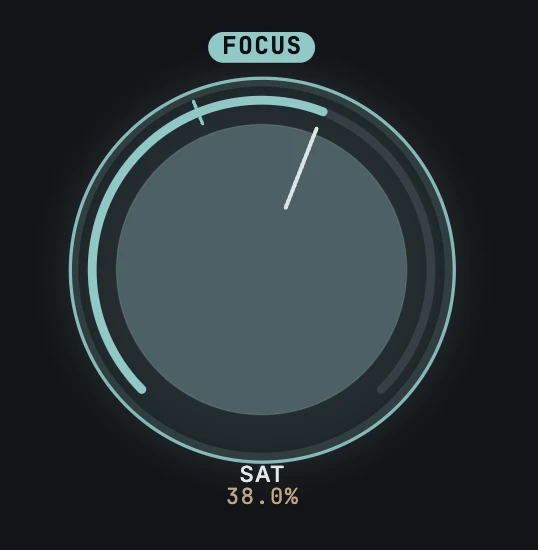
Jump straight back to a focus-zoomed control's default value and exit zoom in one motion, instead of dragging out then double-tapping to exit.
How to use
- On a focus-enabled knob or fader (Channel Detail plugin template or Control View), tap it three times in quick succession.
- The control resets to its default value and exits zoom mode in one step.
Tips
- If you double-tap to zoom in and then change your mind, just tap once more, the third tap overrides the zoom and resets instead, so the net result reads as a simple reset.
Push slowly for precision, throw fast for full-range moves#
FreeNudge a control slowly and it moves in small, careful steps; flick it fast and it tracks your finger 1:1, the same felt "weight" a physical fader or knob has, on every draggable control in the app.
How to use
- Push a fader, knob, pan bar, or slider slowly and gently.
- Notice the value moves less than your finger travel, useful for landing on an exact spot.
- Flick or throw the same control quickly instead.
- Notice it now tracks your finger’s full travel 1:1 for fast, coarse moves.
Tips
- This works automatically on every draggable control, there’s nothing to turn on.
- Stack it with Fine mode for even finer control on slow, deliberate touches.
Avoid phantom jumps when you pause mid-drag#
FreeIf you hold a fader still for a beat mid-ride and then push again, the small "catch-up" jolt your skin's grip produces on release is silently absorbed so the value never jumps, dragging resumes cleanly from exactly where you paused.
How to use
- Start dragging a fader (most noticeable pushing firmly straight up a vertical fader).
- Pause, holding your finger still for a moment mid-drag.
- Push again, tracking resumes precisely from the pause point instead of jumping ahead.
Tips
- This is entirely passive, there’s no setting to turn on. It only engages after a genuinely still hold, so normal continuous rides are never affected.
Get an instant response the moment you touch a control#
FreeEvery draggable control starts changing value on your very first pixel of movement, no dead zone to push through before a slow, careful ride begins to register.
How to use
- Touch down on any fader, knob, pan bar, or slider.
- Move your finger even a fraction of a pixel.
- The value starts changing immediately, no minimum travel is needed before the drag “catches.”
Watch a fader glide smoothly when it's moved for you#
FreeWhen automation, a reset, or an update from Reaper moves a control you're not touching, it eases into the new position instead of snapping there instantly, the same motorized-fader feel as a real console during recall.
How to use
- Let go of a fader (don’t touch it).
- Trigger a change that moves it without your finger, e.g. play back a track with volume automation, or double-tap it to reset.
- Watch the cap ease smoothly into its new position rather than teleporting there.
Tips
- This only applies while a control is at rest. While you’re actively dragging, the control tracks your finger directly with no added smoothing.