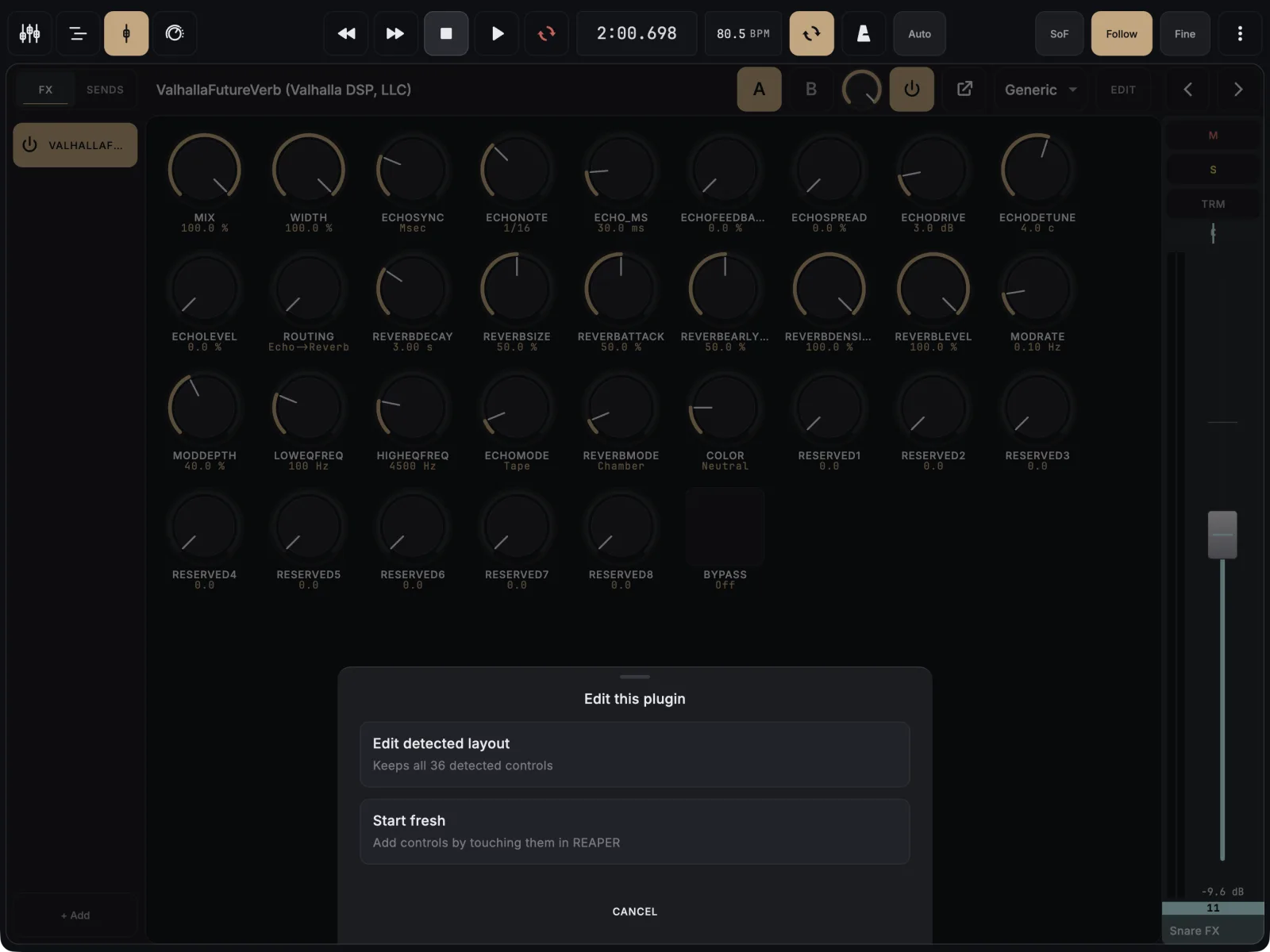
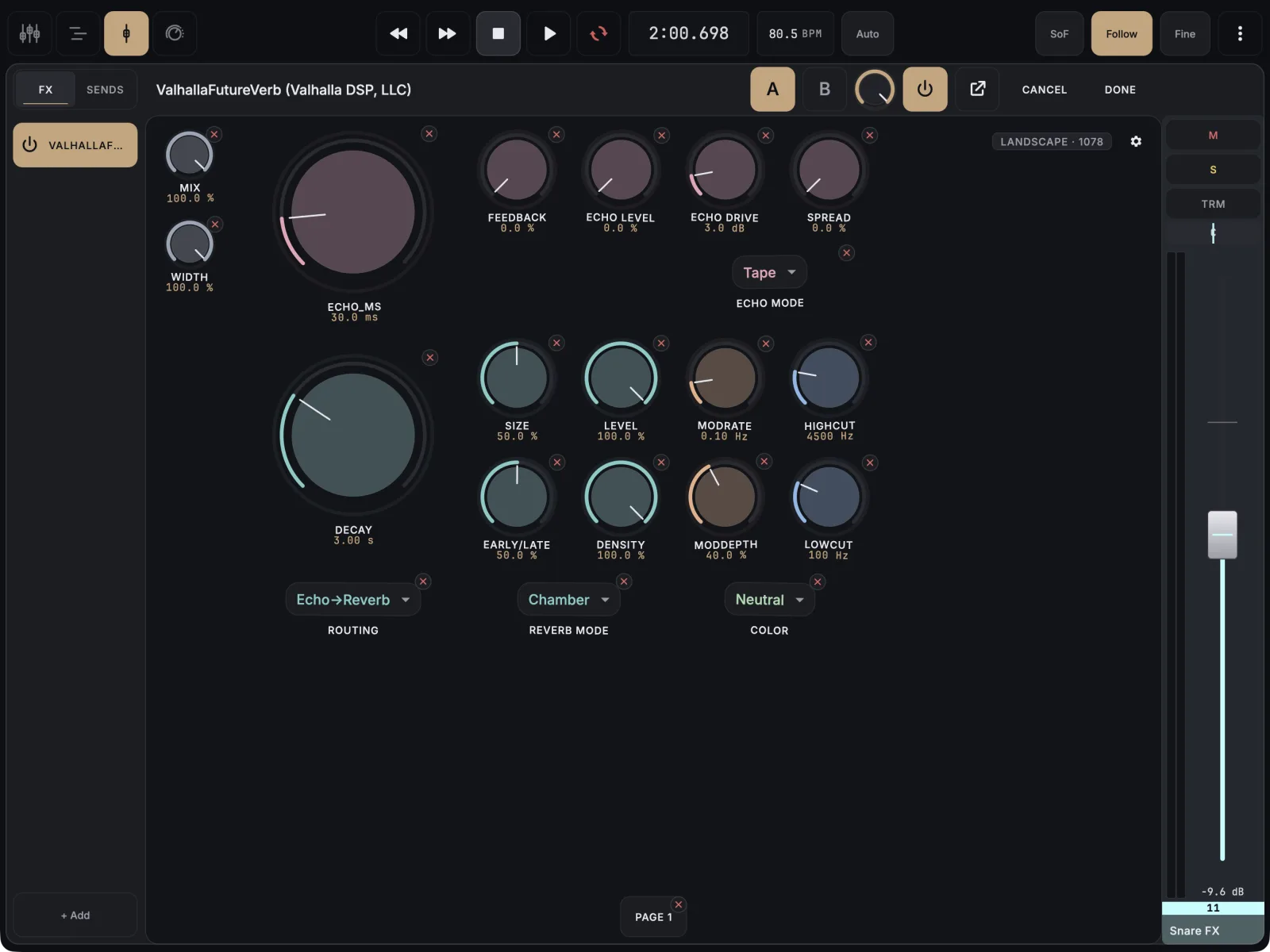
Some plugins expose hundreds of parameters, and the Generic view shows them all. Tap Edit on that view and choose how to begin: Edit detected layout keeps everything so you can trim it, Start fresh gives you an empty page that you fill by touching controls in REAPER. Plugin layouts are part of the one-time unlock.
- Open the plugin in Channel Detail and switch the view to Generic.
- Tap Edit in the plugin header. The Edit this plugin sheet opens.
- Choose Edit detected layout to keep every detected control, or Start fresh to build from nothing.
- To clear a whole page, tap the ✕ on its page tab and confirm Delete. Every control on that page goes.
- To remove one control, tap the × on it and confirm Delete.
- To move a control to another page, drag it against the left or right edge of the screen and hold. The page flips; drop it where you want it.
- With Start fresh, tap an empty spot, choose From listen, and touch each control you want in the plugin’s window in REAPER.
- Tap Done to save the layout for this plugin.
The saved layout is used for every instance of that plugin, in every project.
If it doesn’t work
- No Edit this plugin sheet. It only appears while the plugin has no saved layout. With a saved one, Edit opens it directly.
- Controls shove each other around when you drop them. In Settings, under Control View, set Reorder on collision to Off.
- An AUTO-FIT tag shows. The layout was made on a different screen size and some controls were moved to fit. Edit and save on this device to keep a version for it.
- A touch in REAPER is not picked up. See When listen mode does not pick up a parameter.