Routing
The routing matrix: patch tracks to hardware outputs, the master and other tracks.
Route every track to your interface outputs from one matrix. See every route in the project at once: your tracks down the side, your interface outputs, the parent send and your other tracks across the top.
How to use
- On the Mixer, open the ⋯ menu and pick Routing matrix.
- Each row is a source track. Each column is an output of your interface, the parent send (Parent) or another track.
- A filled pill shows a route. S is stereo, M is mono.
- Tap a folder’s name to collapse it. Its tracks’ routes show faintly on the folder row.
- Use the back arrow to return to the Mixer.
Tips
- Columns marked missing are outputs a route uses that your current interface does not have.
- If a banner says REAPER’s audio device is closed, bring REAPER to the front. Your routes are untouched.
- The matrix opens locked, so nothing changes by accident.
The matrix opens locked. Unlock it to edit; it locks itself again after 15 seconds without a touch.
How to use
- Tap the padlock in the matrix header to unlock it.
- A ring around the padlock counts down. Each touch on the matrix starts the count again.
- Tap the padlock again to lock it straight away.
Tips
- While locked, drag with one finger to move around the matrix.
- Long-press a route while locked to open its fader. Only adding and removing routes needs the matrix unlocked.
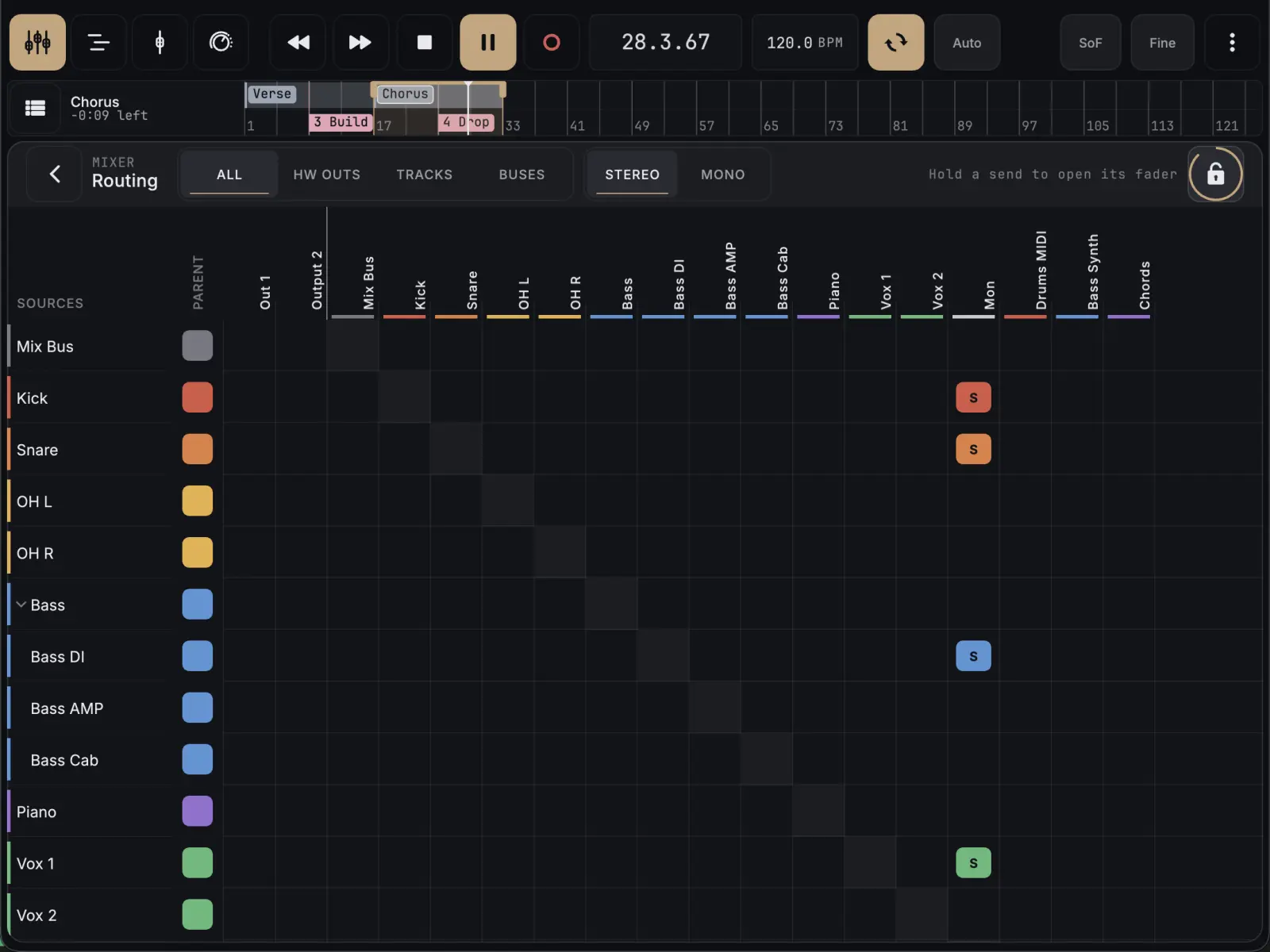
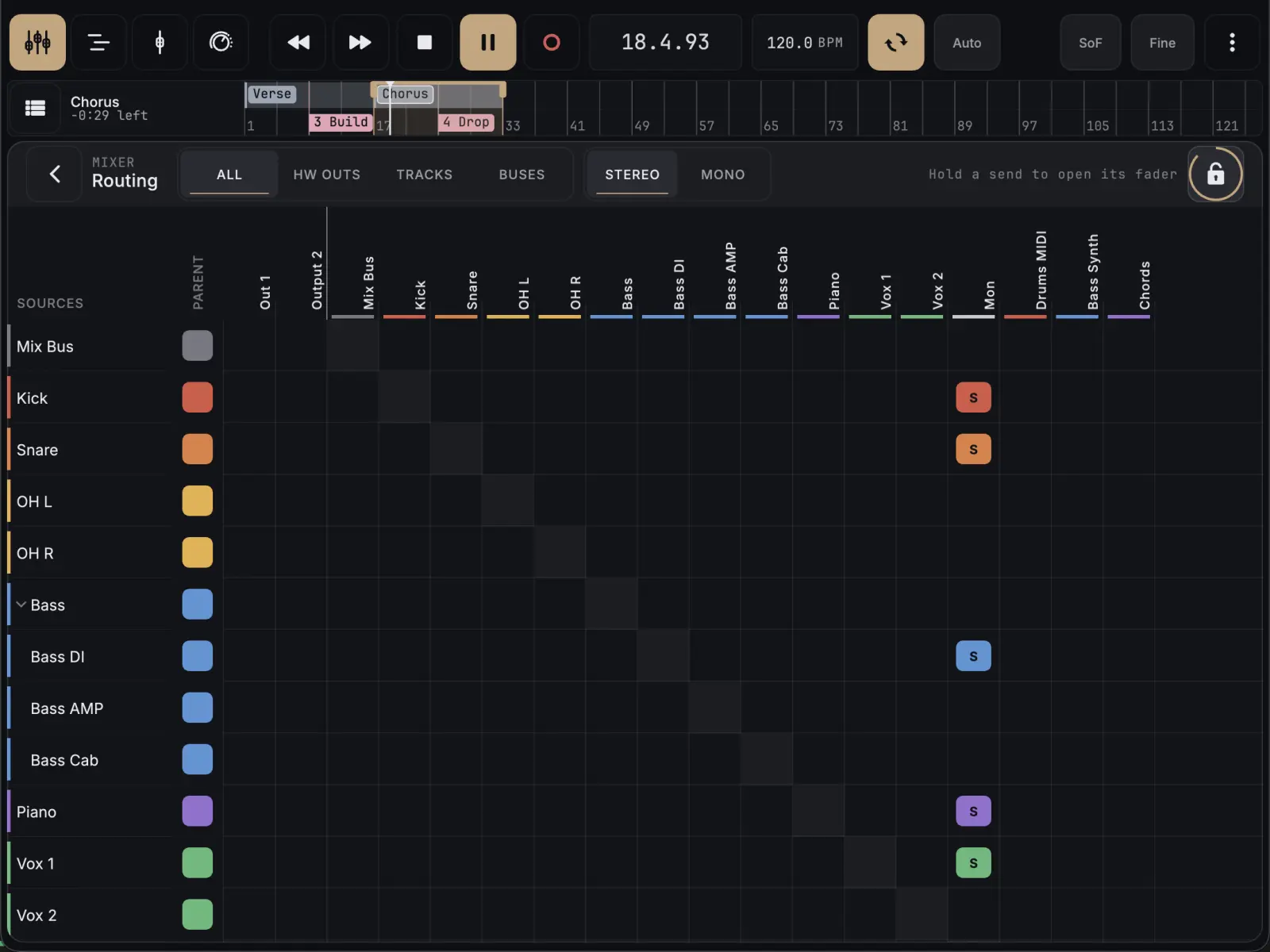
Tap an empty cell to add a route, tap a filled one to remove it. New routes start at 0 dB.
How to use
- Unlock the matrix with the padlock.
- Pick Stereo or Mono in the header.
- Tap an empty cell to add a route at 0 dB. Tap a filled cell to remove it.
Tips
- Press and hold an empty cell to add the other width without changing the header.
- In Stereo, a pair starts on the column you tap, so 2/3 works as well as 1/2.
- A cell marked ×2 holds two identical routes. A tap removes both.
- A send to a cue mix starts pre-fader, so your faders never change the musician’s mix. Other sends start post-fader.
Patch eight tracks to eight outputs, or four stereo tracks to four output pairs, with a single stroke. One undo in REAPER takes the whole stroke back.
How to use
- Unlock the matrix with the padlock.
- Pick Stereo or Mono in the header.
- Put one finger on the first cell and drag along a row, down a column or diagonally. The cells you will change light up.
- Lift to apply. Lift back on the cell you started from to cancel.
Tips
- Starting on a cell that already has a route removes routes instead.
- In Stereo, a diagonal steps two outputs per track: 1/2, 3/4, 5/6.
- Two fingers move the matrix while it is unlocked.
- Undo in REAPER takes back the whole stroke at once.
See when a route makes a feedback loop#
UnlockIf a new route feeds a track back into itself, MixSurface tells you which tracks the loop runs through. The route is still made, exactly as REAPER would make it.
How to use
- Add a route in the matrix, a send, or turn a track’s parent send back on.
- If that route closes a loop, a warning names it, for example “Vox → Vox Bus → Vox”.
- Remove one of the routes in the loop if you did not mean to make it.
Tips
- By default REAPER keeps part of a feedback loop silent. The warning says so when that is the case.
- To let a loop pass audio, turn on “Allow feedback in routing” in REAPER’s Project Settings, Advanced tab. Keep the levels low: feedback gets loud fast.
- A child track sending to its own folder is not a loop and gives no warning.
Press and hold a route to open its fader, pan, mute and mode in a floating panel, without leaving the matrix.
How to use
- Press and hold a filled cell.
- A panel opens with that route’s fader, pan, mute and mode.
- If the cell holds more than one route, pick the one you want from the list.
Tips
- This works while the matrix is locked. The lock only stops you adding and removing routes.
- Tap the pin to keep the panel open when you go to another screen.
- In the panel’s ⋯ menu, Destination channels moves a track send to 3/4, 5/6 and so on.
- For a mono route, the same menu picks which source channel feeds it: L+R, L or R.
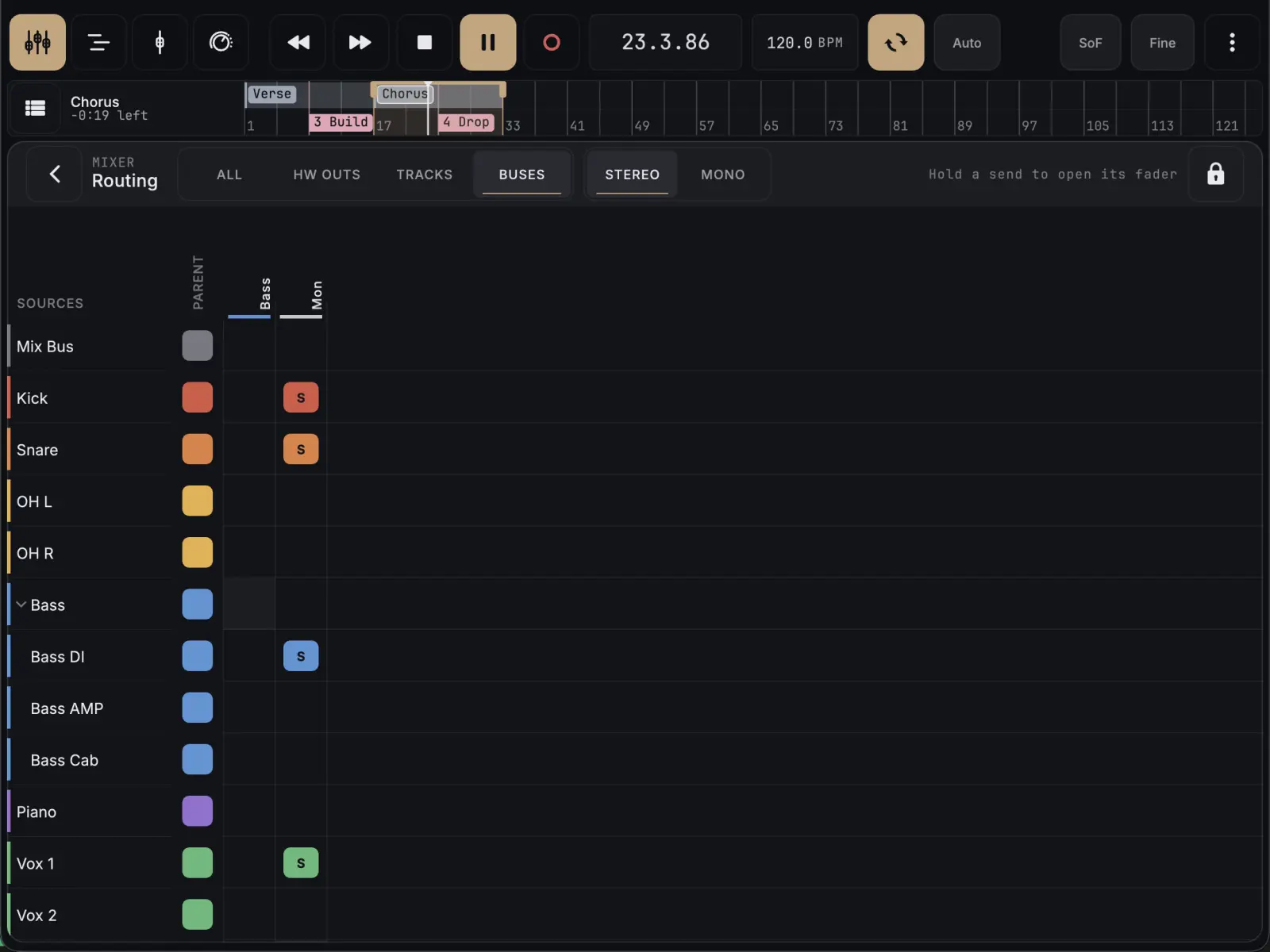
Show all columns, only hardware outputs, only tracks, or only buses. Each device remembers its own choice.
How to use
- In the matrix header, tap All, HW Outs, Tracks or Buses.
- The columns change at once. Your routes are untouched.
Tips
- Buses shows folders and tracks that already receive a send.
- An iPhone opens on HW Outs, an iPad on All, until you pick one.